1. Export a CSV marker file from Pix
Open the comments panel on the right side in Pix. Press the three dots and select "Export". Now you can then download the CSV file from Pix.

The timecode in Pix starts with 00:00:00:00 for each clip, so you may need to use the offset function on EditingTools.io to sync it with you timeline or move it manually in your NLE (editing software).
2. Use the "Convertitore di marcatori" to convert the CSV marker file into a CSV file
Open the free Convertitore di marcatori, select "Pix Systems > Comments (.csv)" and set "convert" to "CSV for Google Sheets". Generate and download the file. Se hai problemi a convertire il file, puoi contattare il supporto gratuito.
3. Import the CSV file into Google Sheets
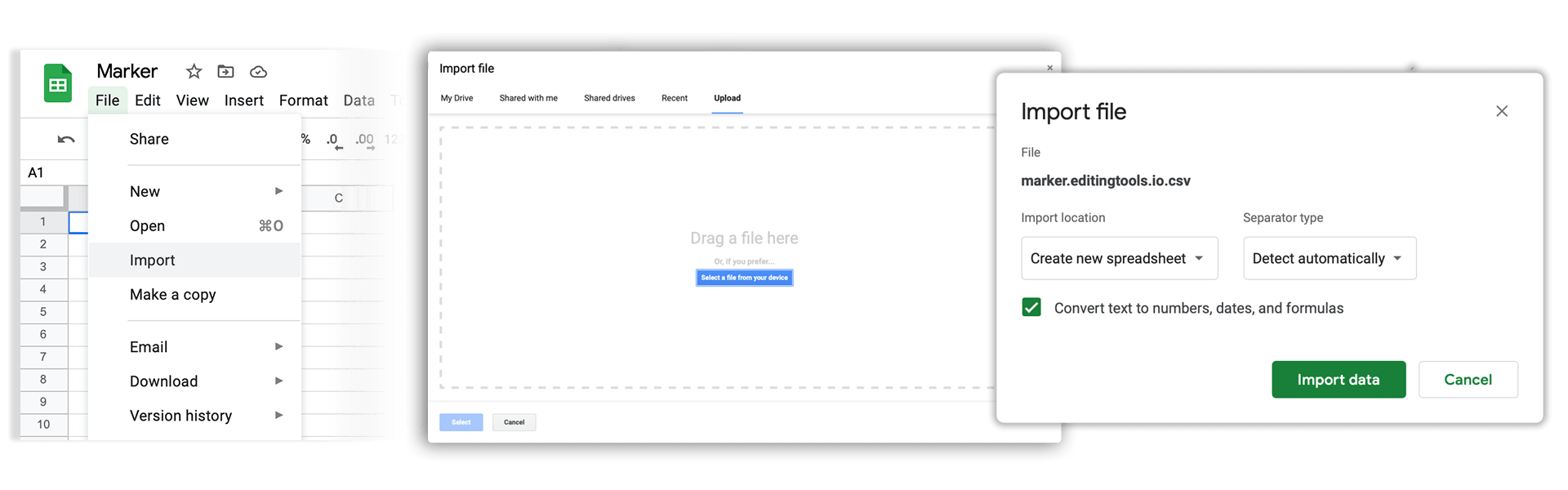
Open Google Sheets and go to "File -> Import". Upload the generated CSV file and press "Import Data" to generate the Sheet with all markers.
🚀 Fatto
Per ora è tutto! Se hai trovato utile questo tutorial, condividilo per sostenerci. Se hai suggerimenti su come migliorare il flusso di lavoro, faccelo sapere!